



How to Add Custom Comments to S2M Part Labels in CABINET VISION
- 1.Grain Matching Multiple Assemblies in CABINET VISION [VIDEO]
- 2.Exploring Different Edge Banding Options in CABINET VISION [VIDEO]
- 3.Draw More Efficiently When You Understand the CABINET VISION Hierarchy [VIDEO]
- 4.Simplify the Complex…with the xShaping Multiplier [VIDEO]
- 5.How to Create a Custom Built-In Microwave Cabinet with CABINET VISION
- 6.How to Add Custom Comments to S2M Part Labels in CABINET VISION
- 7.How to Quickly Design Floating Vanities in CABINET VISION: The Ultimate Shortcut
- 8.Guide to Installing and Uninstalling Keyless Licences in CABINET VISION
- 9.Using the _NOCNC Parameter in CABINET VISION: Smarter Control Over Your Parts
- 10.Mastering Part Spacing in CABINET VISION: A Step-By-Step Guide to Precision and Efficiency
- 11.How to Use Cross Sections in CABINET VISION for Clearer Drawings
- 12.How to Create Custom Pulls in CABINET VISION (Including SketchUp Models)
- 13.How to Add Custom Comments to S2M Part Labels in CABINET VISION
- 14.What Is the Vertical Positional in CABINET VISION? (And Why It Matters)
- 15.ALPHACAM Tech Tip: Automatically Close and Finish Geometry
- 16.How to Design Beautiful Joinery with Inset Drawers in CABINET VISION
- 17.Save Time with Wall Ends in CABINET VISION: A Step-by-Step Guide
- 18.How to Add Automatic Scribes to Cabinet End Panels Without Manual Adjustments
- 19.Designing Cabinets for Integrated Refrigerators: How to Plan According to the Appliance’s Specifications
When it comes to optimizing your CABINET VISION workflow, sometimes it’s the small details that can make a big difference. Today, Clayton from Planit Canada walks us through how to add custom comments to S2M part labels. This feature can be incredibly useful for specifying details like paint colours, finishes, or any other custom notes you’d like to include on your part labels.
Let’s dive into how you can set this up to enhance your projects and make your labels work harder for you.
Click here for video script
G’day! Welcome to another CABINET VISION tutorial. I’m Clayton, this is the Planit Canada channel, and today we’re going to start with a little game – a spot-the-difference.
Can you tell me what the difference is between these two things? It’s not that tricky, so I’m not going to spend much time on it. You can probably see that the left end is called a finished left end, while the right end is now called a finished right gable; “gable” being a popular term in anglophone Canada to describe our ends.
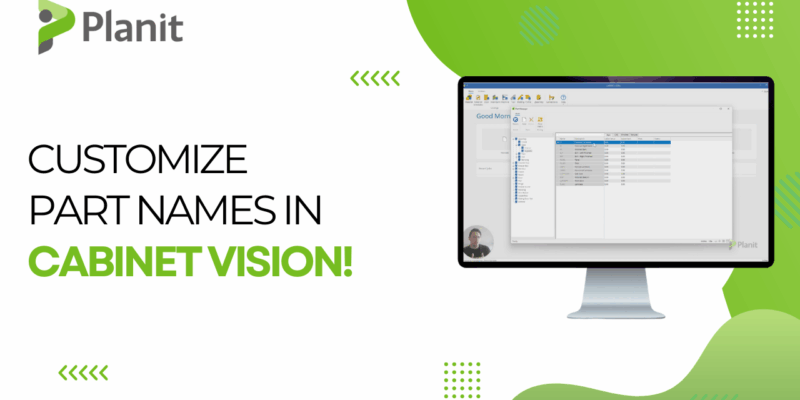
You may not know this, but we can actually personalize and modify the names of our parts as they appear in CABINET VISION to more closely match the naming convention that we use in our factory or in our company. I’ve worked in a couple of different factories, and the names can change from one place to another very easily. So you might want CABINET VISION to reflect your terminology a bit better. The good news is, it’s quite simple to do.
First, I’m going to close down this draft, exit the job, and go back to the main menu. On the main screen, in the top left-hand corner, you’ll see the Part Manager. The Part Manager is like a library of all the different parts that exist in CABINET VISION.
If I click on Assembly, you’ll see all the different assembly parts that are available. If I click on Pull, you’ll see all the different kinds of handle parts listed. This is the menu we use to modify the part names.
The part we changed earlier falls under Exposed. Here you can see a finished left end and a finished right gable in the Description column. The “name” that we’re changing is actually the description field in CABINET VISION.
We can simply click on these descriptions and edit them to say whatever we want, so they match the terminology used in our shop.
On the left-hand side, under the Name column, you’ll notice there is a code. We cannot change this code. It’s integral to the formulas, the codes, and other parts of CABINET VISION. So we leave that as is. What we can change is the description, and that’s what will show up on our labels, our reports, and for our users, designers, and engineers when they’re drawing in CABINET VISION.
It really is that simple. That’s all we need to do to modify part names.
We hope this has helped. If you have any other topics you’d like to see explained, please leave a comment down below. We’d love to create video content that answers your questions and supports your work.
Have a great day!
Why Add Custom Comments?
By adding a custom comment field, you can include specific details on your part labels—such as cabinet finishes or room-specific notes—that automatically populate based on your project’s attributes. This saves time and ensures accuracy, especially for complex projects where every detail matters.
This is just one of many ways custom cabinet software can improve workflow efficiency and help deliver precision results.
Step 1: Create a Room Attribute
To begin, we’ll create a new attribute at the room level, which will allow us to automatically fill in comments on our part labels.
- Go to Utilities:
- Navigate to Utilities > Parameters.
- Click on New Attribute to create a room attribute. For this example, let’s call it “Cabinet Finish.”
- Set the Parameter:
- Name your parameter _CustomComment and set its type to Text.
- You can add a default comment if needed, or leave it blank to fill in as needed for each project.
- Under Class, choose Room to link this attribute to the room level.
- Save and Apply:
- Once created, this new attribute will automatically appear in your project’s room parameters. You can now easily enter custom comments for each room.
Step 2: Create a UCS to Link Comments to Part Labels
Now that we have a custom attribute set up, we need to link it to the S2M part labels using a User Created Standard (UCS).
- Create a New UCS:
- Navigate to Utilities > UCS > New.
- Use the UCS Wizard to set up a new UCS for parts, such as finished ends or dividers. For this tutorial, we’ll call it “Comment UCS.”
- Modify the UCS:
- In the UCS editor, specify that the Comment field for selected parts (e.g., finished left and right ends) should link to your custom attribute.
- Use the code {CustomComment} to dynamically pull the text from your room attribute. Make sure to use the curly brackets to ensure CABINET VISION interprets it correctly.
- Save the UCS:
- Once saved, your UCS will automatically populate the comment field for all specified parts. This means that whatever you input in the “Cabinet Finish” field at the room level will now appear on your part labels.
Step 3: Update S2M Label Settings
Now that the UCS is set up, we need to adjust the S2M label settings to include the new comment field.
- Open S2M Center:
- Navigate to S2M Center > Reports.
- If your current label template doesn’t include the comment field, click Setup Reports to modify it.
- Add the Comment Field:
- Right-click on the label report and select Edit.
- In the Variables menu, navigate to Part List and find the Comment field.
- Insert this field into your label template, ensuring that the information from your custom comment displays correctly.
- Save and Test:
- Save your changes, and test by running a job. You should see the custom comments appear on your finished part labels, just as specified.
Bonus Tips: Make It Your Own
While we used “Cabinet Finish” as an example, you can customize this field to include any information relevant to your project. Whether it’s for specific paint colours, hardware types, or installation notes, this method is highly adaptable to your needs.
If you’re new to working with UCS, exploring the Part Manager can provide a list of additional codes to customize even further. This flexibility allows you to link attributes to any part of your project, helping you take your CABINET VISION designs to the next level.
Become a CABINET VISION Power User
Learning how to create custom attributes and link them through UCS is a powerful way to enhance your efficiency and precision. We hope this guide has been helpful! For more in-depth tutorials and tips, be sure to check out our other CABINET VISION Power User videos on our YouTube channel.